Lab 2.7 - Resolve a Git merge conflict with a teammate
Level: 2 Contributor advanced
Time: ~35 min
You will: face a real merge conflict on two files that conflict very differently, and resolve both without losing anybody's work.
The situation
Mariia Pyvovarchuk has been working on US-018 - Cap the crew size a planner can assign, in the same flow and the same permission set as you. She merged this morning. You did not.
Git conflicts on a Salesforce project are almost always one of two shapes: a Permission Set where two people added different entries, and a Flow where two people changed the logic. The first is mechanical. The second requires you to understand both changes.
Before you start
- Lab 2.6 finished and merged
- Nothing waiting in the Source Control panel that you still care about
Steps
1. Start your own change
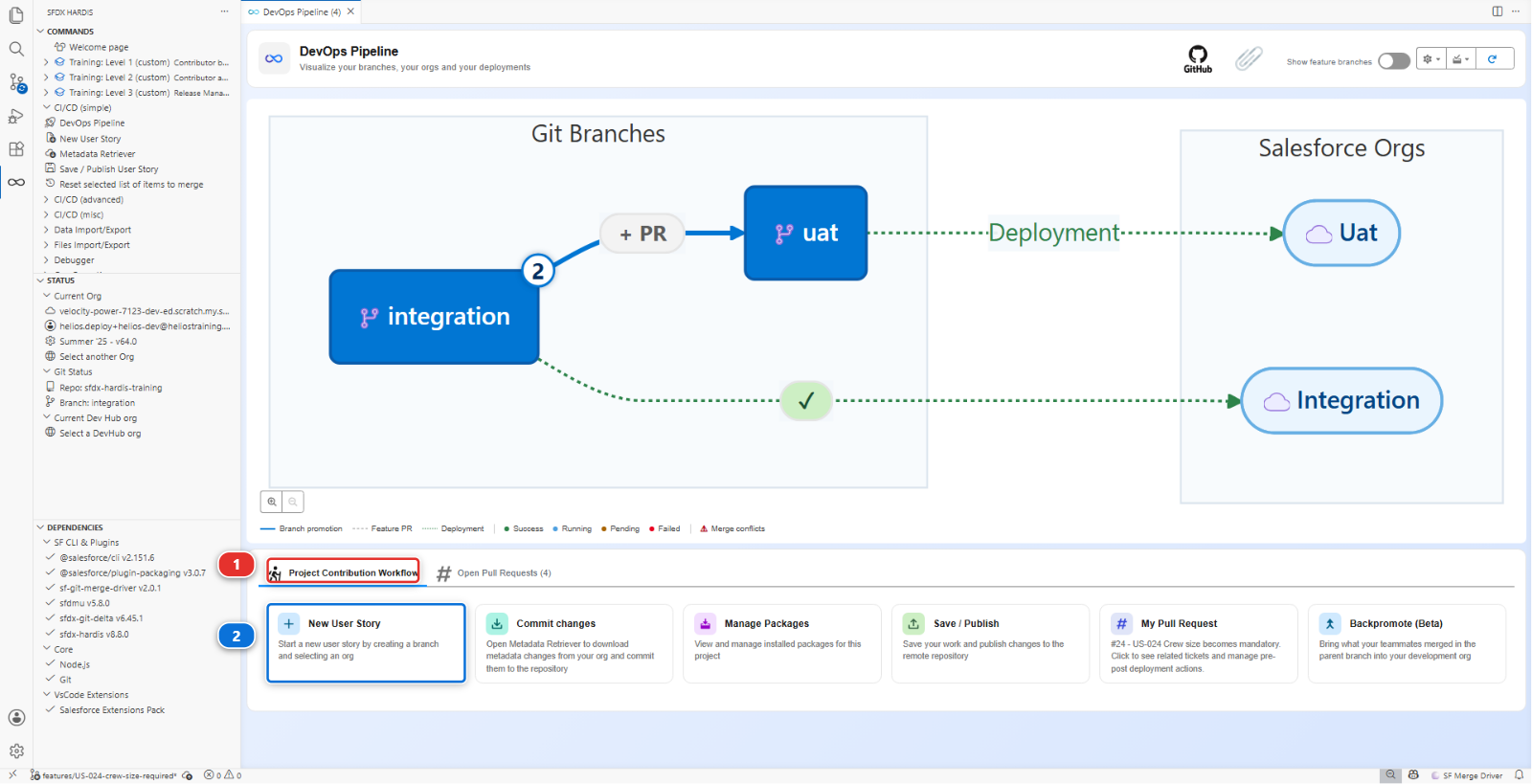
New User Story (2), under Project Contribution Workflow (1). Name
US-034-crew-override, org helios-dev.
In helios-dev:
- Open the flow
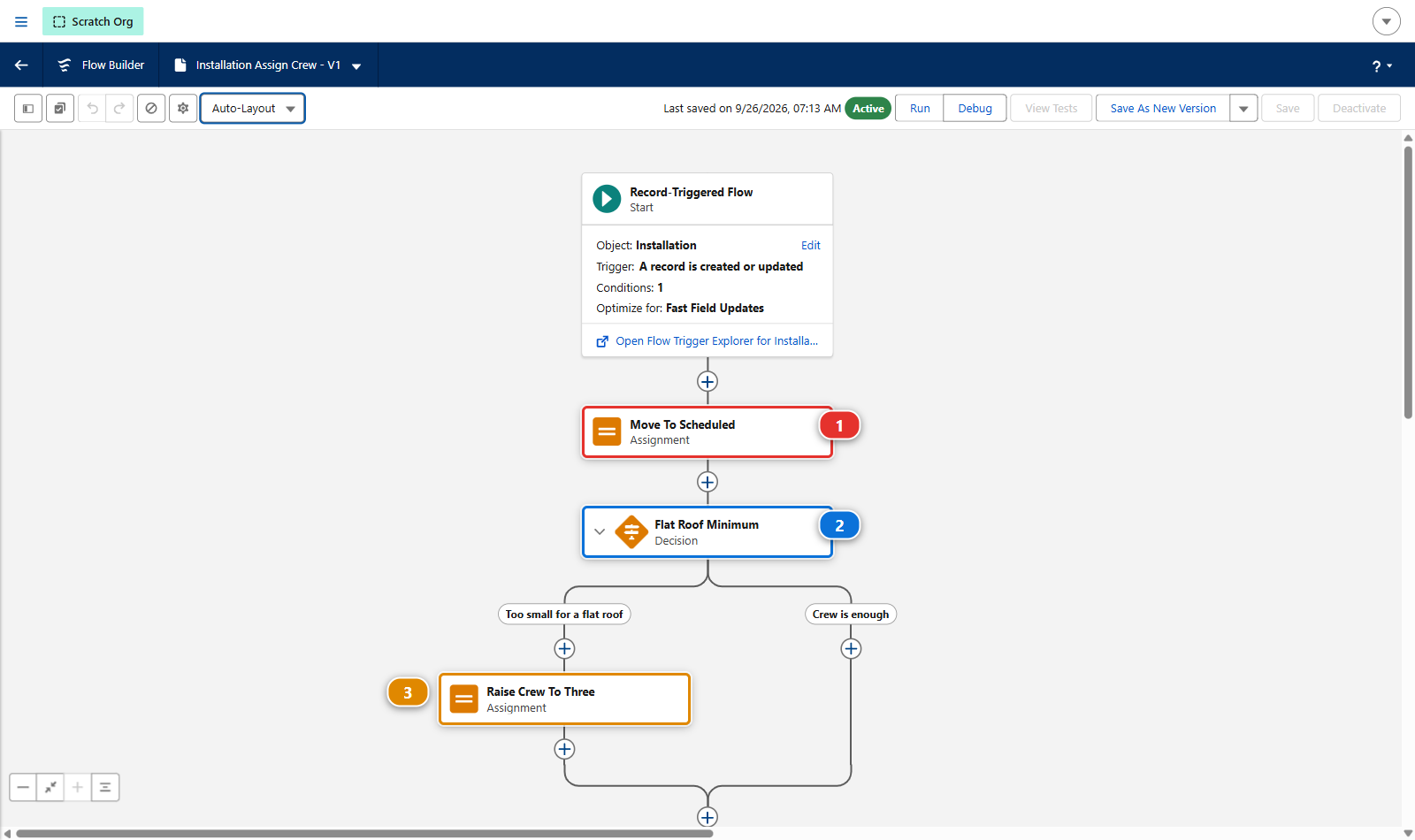
Installation Assign Crewand add a decision so that an installation whose roof type isFlatgets a crew of at least 3, whatever else the flow decided. Connect it to the same assignment the flow already ends on, so the new rule runs after the status change - On the permission set
Helios Delivery Manager, grant edit access onInstallation__c.Crew_Notes__c, so a planner can say why a crew was raised
In Flow Builder, with the canvas in Auto-Layout, the flow then reads: the assignment it already ended on, Move To Scheduled (1), your new decision (2), and on its flat roof branch the assignment that raises the crew to three (3).
Retrieve the flow and the permission set, commit them, and stop there: do not publish yet.
2. While you were building it, Mariia merged
Mariia does not exist. Her work does, and the training reproduces it inside your own fork so you can genuinely review and merge it. Do this after your own change exists, because that is the situation the lab is about: you branched, she merged, and neither of you knew about the other.
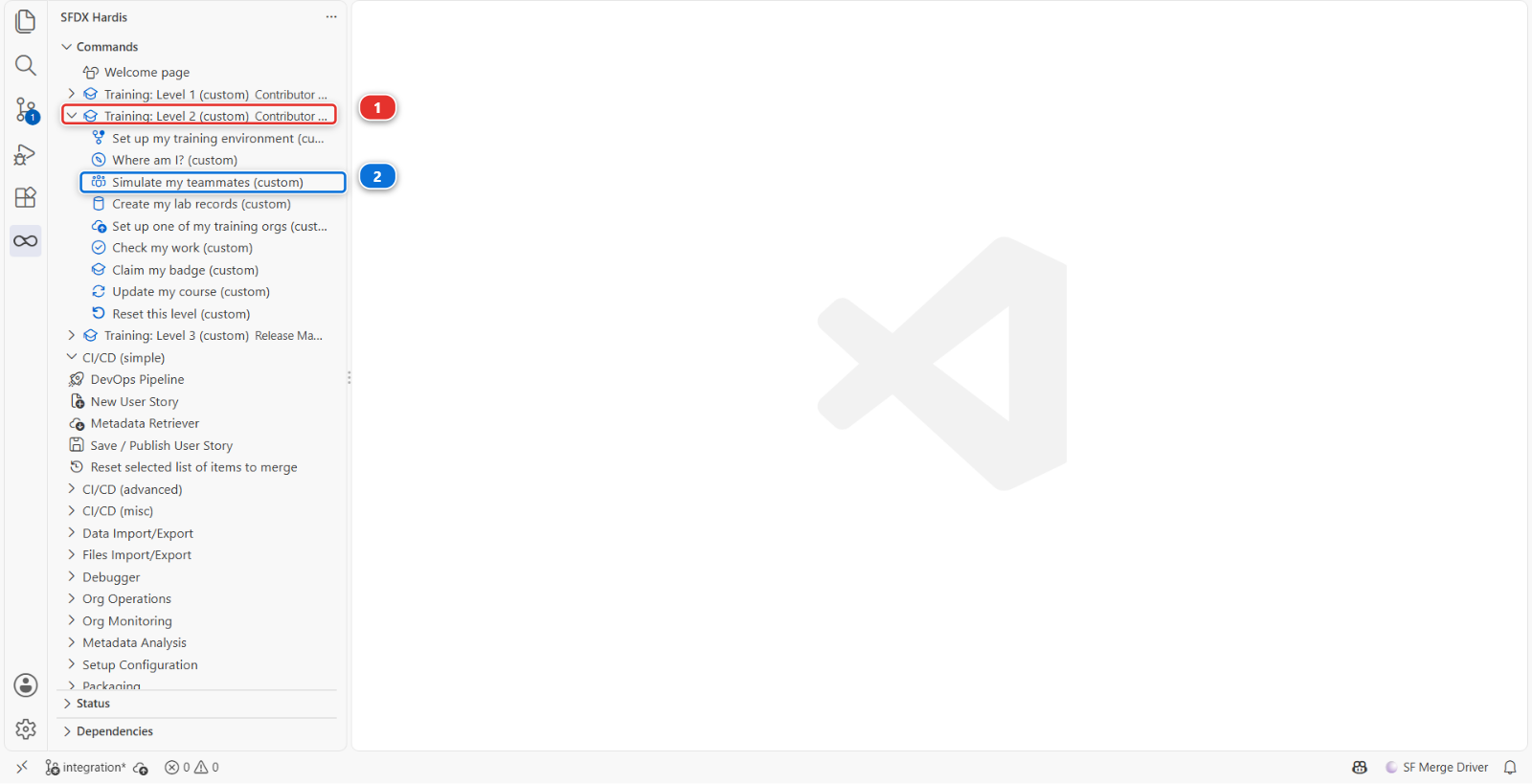
Training: Level 2 (1) > Simulate my teammates (2), from the Welcome page or from the sfdx-hardis command list.
The command panel asks three questions:
| Question | Answer |
|---|---|
| Which teammate work do you need? | US-018 Cap the crew size a planner can assign |
| Create it? | Yes |
| Merge it for you once its checks pass? | Yes, unless you want to merge it yourself on GitHub |
It creates the branch training/mate-us-018-crew-capacity from your current integration, commits
Mariia's changes under her name, pushes it to your fork (your own copy of the course repository on
GitHub, for example github.com/my-username/sfdx-hardis-training), opens the Pull Request and
prints its address.
With Yes, the panel waits for the checks, two to four minutes, merges the Pull Request and writes Pull Request merged into its base branch. With No, open the address it printed, have a look at Files changed, and merge it with Squash and merge once the checks are green: the same clicks as Lab 2.1, step 1b, where each one has its screenshot. If you merge it on GitHub while the panel is still waiting, it notices and stops.
Either way, Mariia is now in integration, and you are behind.
Under the hood: why the teammate is replayed rather than pre-existing
The command ran:
node scripts/training.mjs simulate
which copied the files from scripts/simulate/us-018-crew-capacity/files/ over your working tree,
committed them with Mariia's name and email, pushed the branch to your fork and opened the Pull
Request there with gh pr create.
It has to work this way. A Pull Request lives in one repository: you cannot review one that exists
in somebody else's. And a branch shipped in the repository months ago would not share a sensible
ancestor with the integration you have built up over five labs, so the conflict would be either
absent or absurd.
The same patch set produced the real teammate Pull Requests on the public training repository, so what you are reviewing is byte for byte what the screenshots show.
3. Publish, and watch the Pull Request refuse to merge
Now publish your own change: Save / Publish, push, and open the Pull Request into integration.
GitHub shows:
This branch has conflicts that must be resolved
force-app/main/default/flows/Installation_Assign_Crew.flow-meta.xmlforce-app/main/default/permissionsets/Helios_Delivery_Manager.permissionset-meta.xml
Two files, two completely different kinds of problem.
Neither of them is git being awkward. Both changes are real, both are wanted, and in both files the two of you wrote in the same place: Mariia granted a field on the permission set one line from where you granted yours, and she connected the same assignment element in the flow to a decision of her own. A merge tool cannot know which of two connectors should win. You can.
4. Merge integration into your branch
Open the Source Control panel, the icon of three small circles joined by lines in the left bar.
First make sure your machine knows what Mariia merged. Open the Command Palette: View >
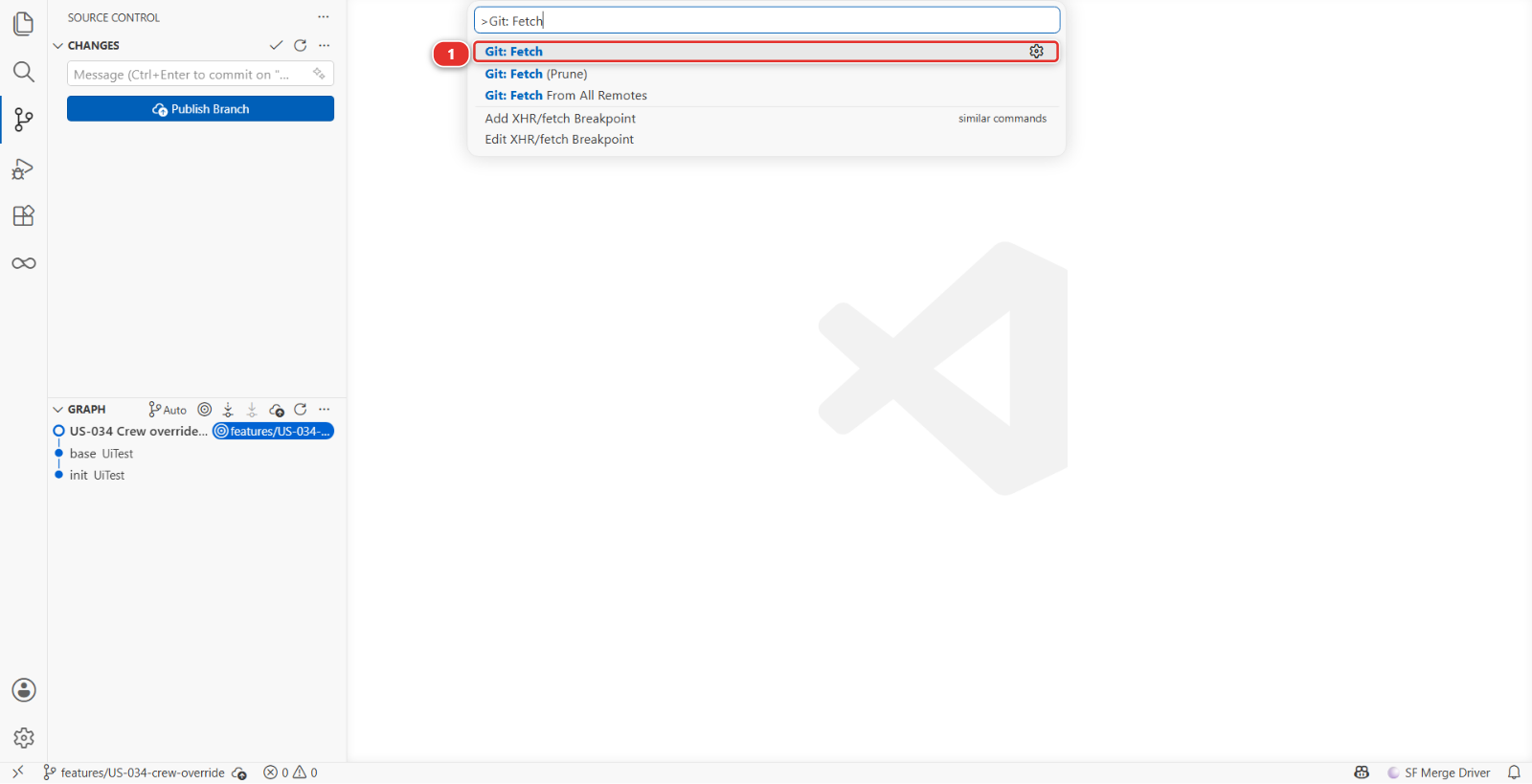
Command Palette in the menu bar, or Ctrl+Shift+P (Cmd+Shift+P on a Mac). Type Git: Fetch and
pick Git: Fetch (1). Nothing changes in your files: fetching only downloads what is new on
GitHub.
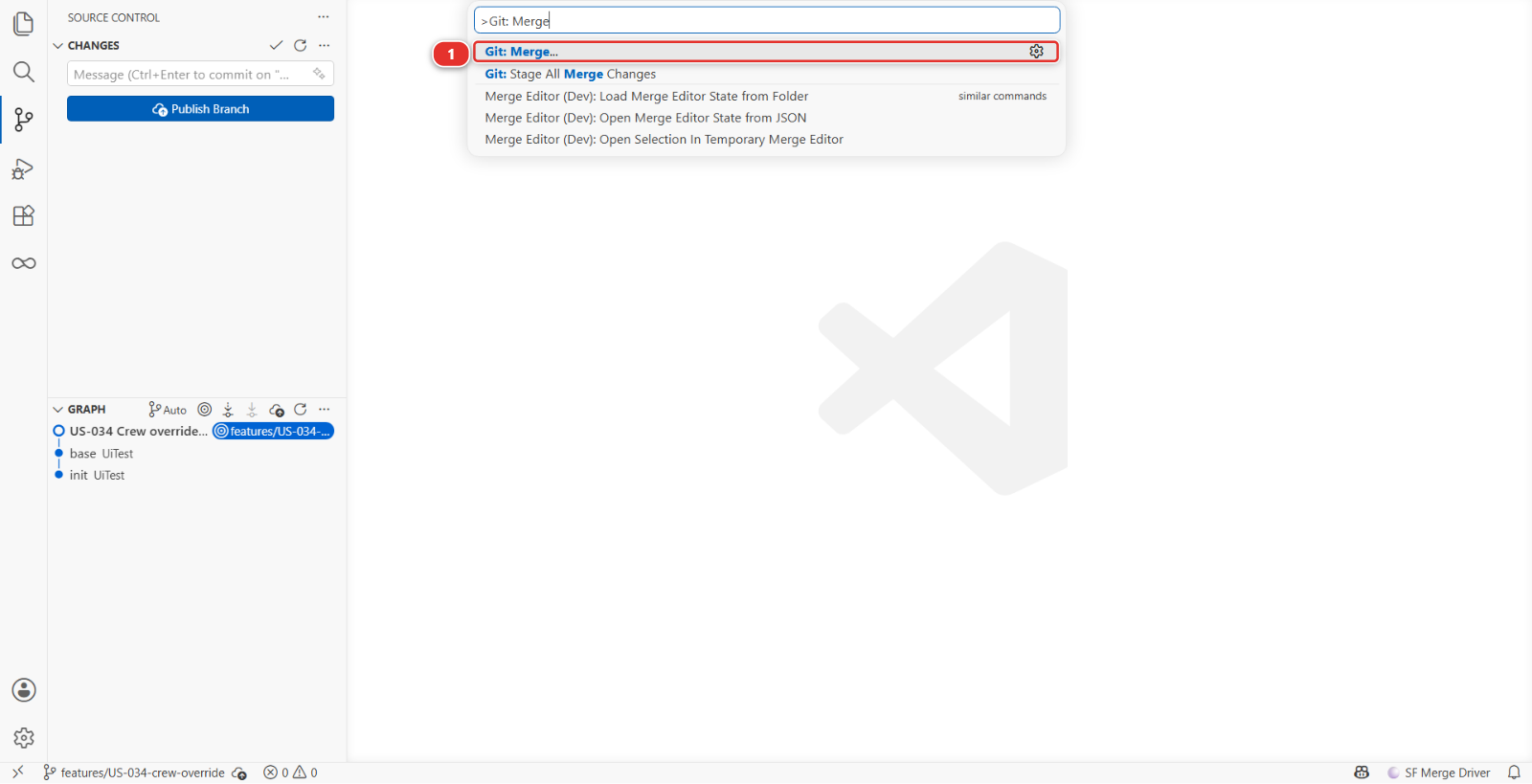
Then the Command Palette again, type Git: Merge, and pick Git: Merge... (1). The same
command is in the ... menu at the top of the Source Control panel, under Branch.
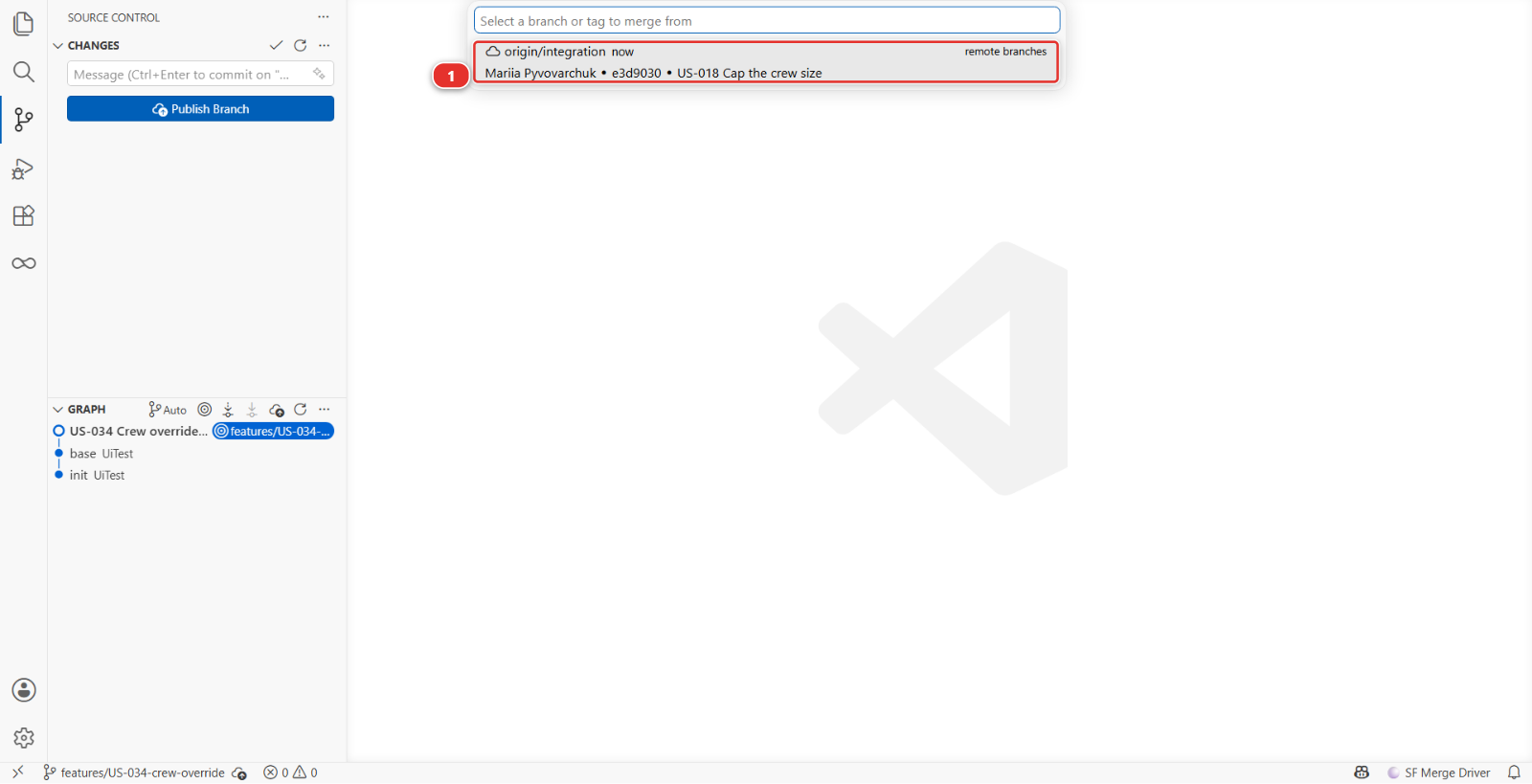
VS Code asks which branch to merge. Type integration and pick origin/integration (1),
listed under remote branches: the copy of integration that is on GitHub, with Mariia's work in
it. Not the plain integration if it is listed too: that is the copy on your machine, which you
have not updated since you branched.
Two files come back marked as conflicting. They appear in the panel under Merge Changes (1), each with a ! (2), and the status bar says a merge is in progress.
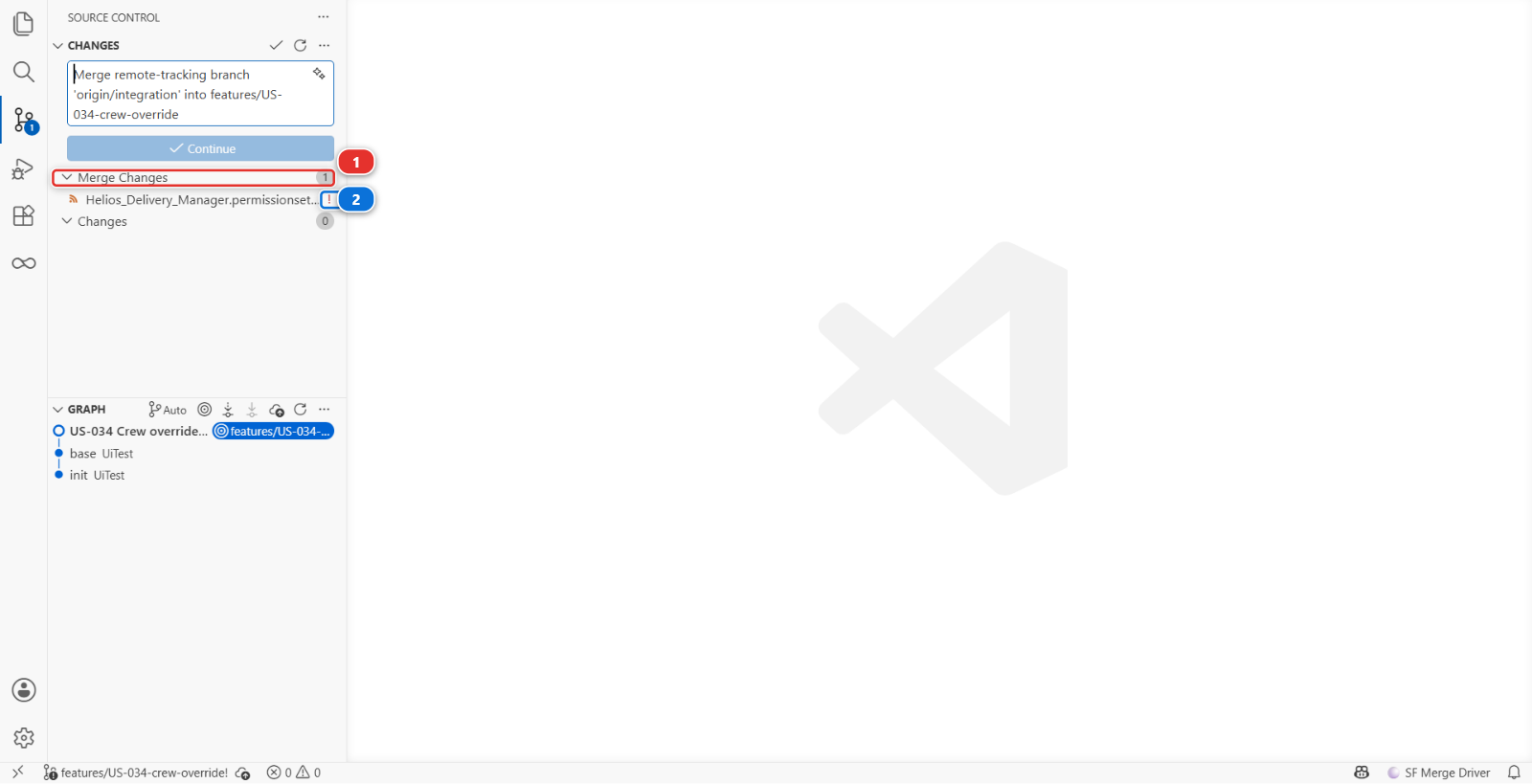
The picture lists only the permission set. Yours also lists the flow Installation_Assign_Crew,
with its own !: two files, as GitHub said.
Under the hood: what Merge Branch ran
git fetch origin
git merge origin/integration
A conflict is not an error. It is git saying that two people wrote in the same place and it will not guess which one meant it.
5. Resolve the permission set: take both
Click the permission set file under Merge Changes, then Resolve in Merge Editor at the
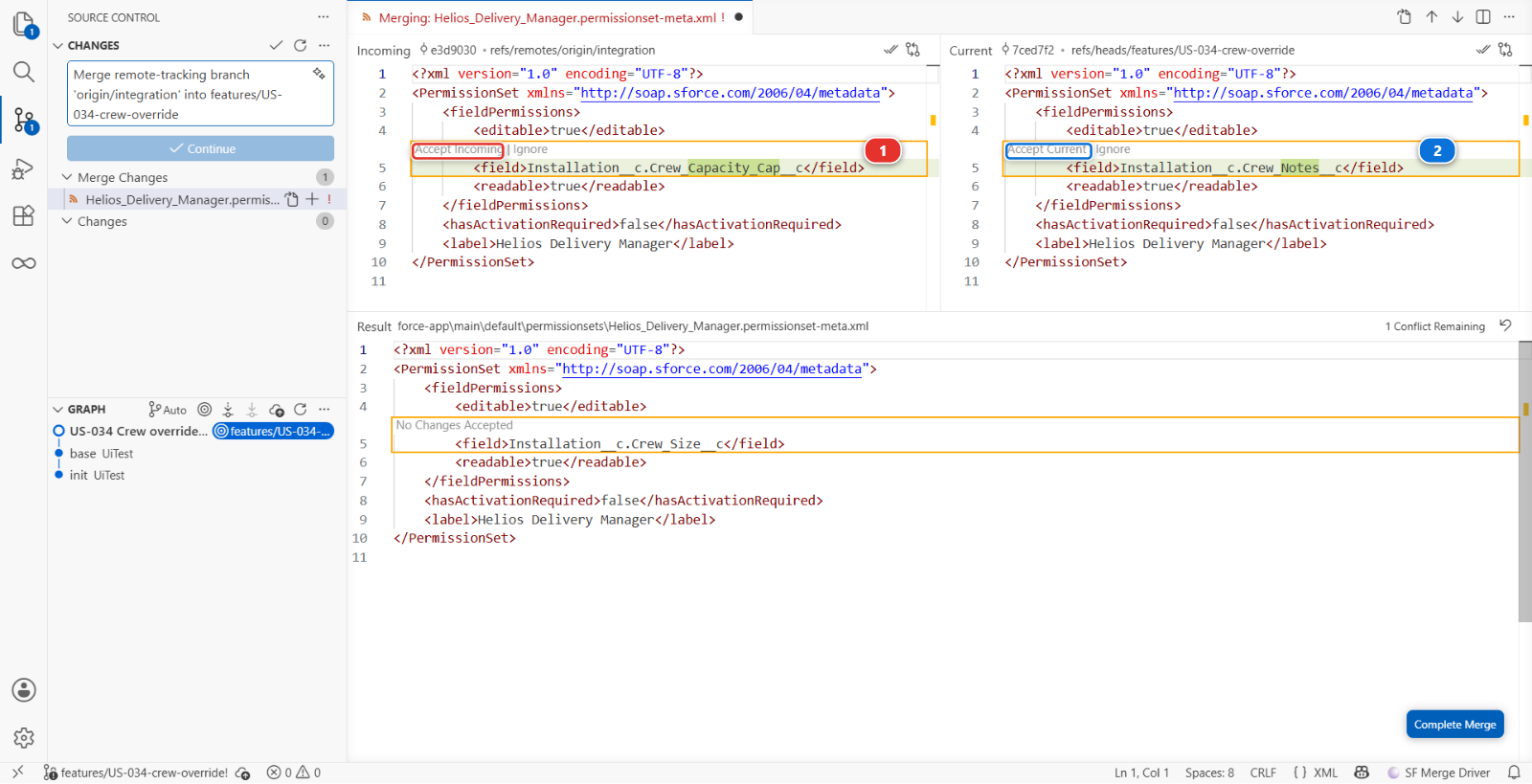
bottom right of the file. VS Code opens its merge editor: Incoming (1), Mariia's version
from integration, on the left, Current (2), yours, on the right, and the Result (3)
you are building at the bottom, which starts from the version you both branched from.
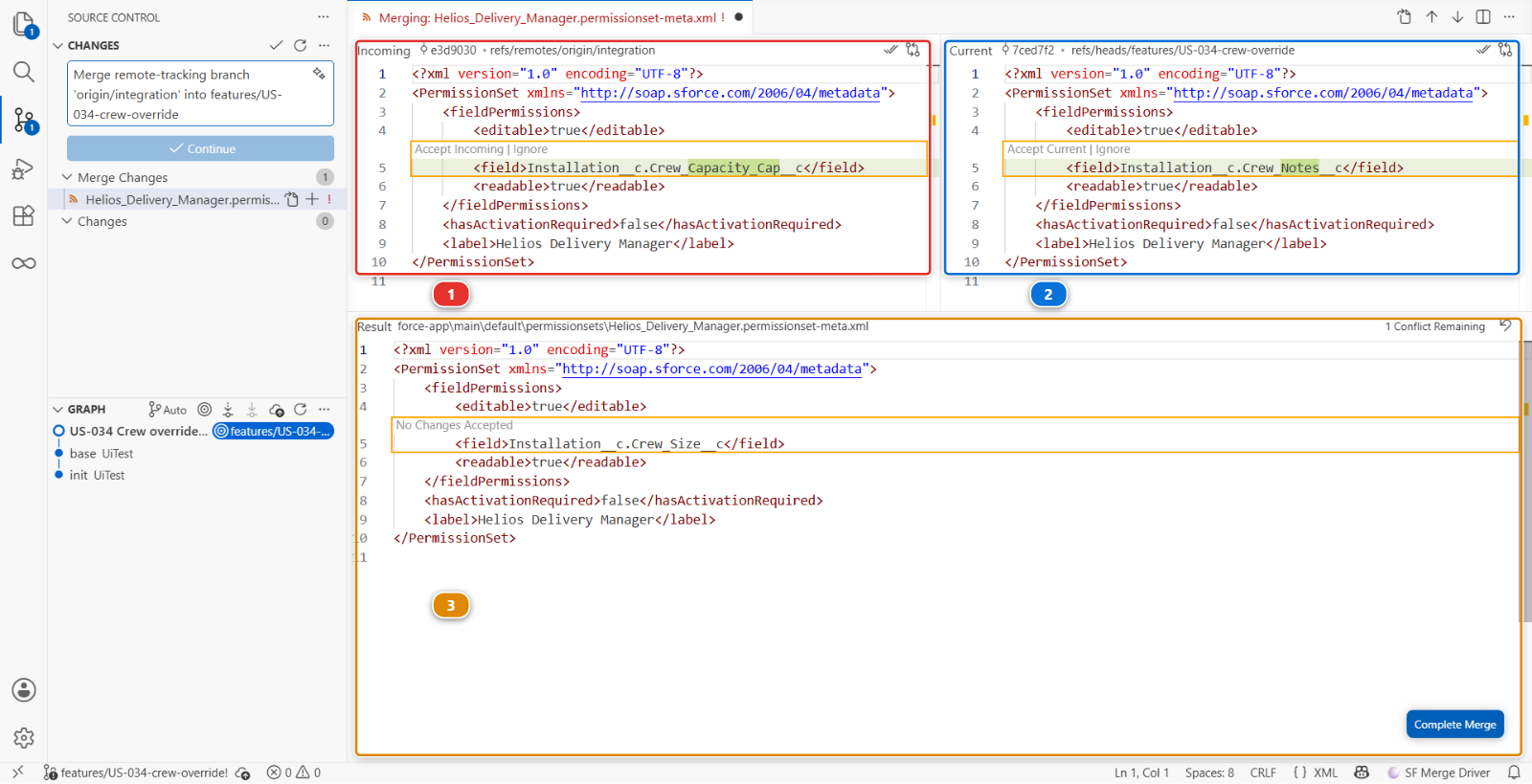
This one is mechanical, and you can decide it without understanding the XML: both entries belong. Mariia granted one field, you granted another, and a permission set holds as many as it needs. Keep both sides: click Accept Incoming (1) above the highlighted line of the Incoming pane, then Accept Current (2) above the one of the Current pane.
Now read the Result (1) before anything else:
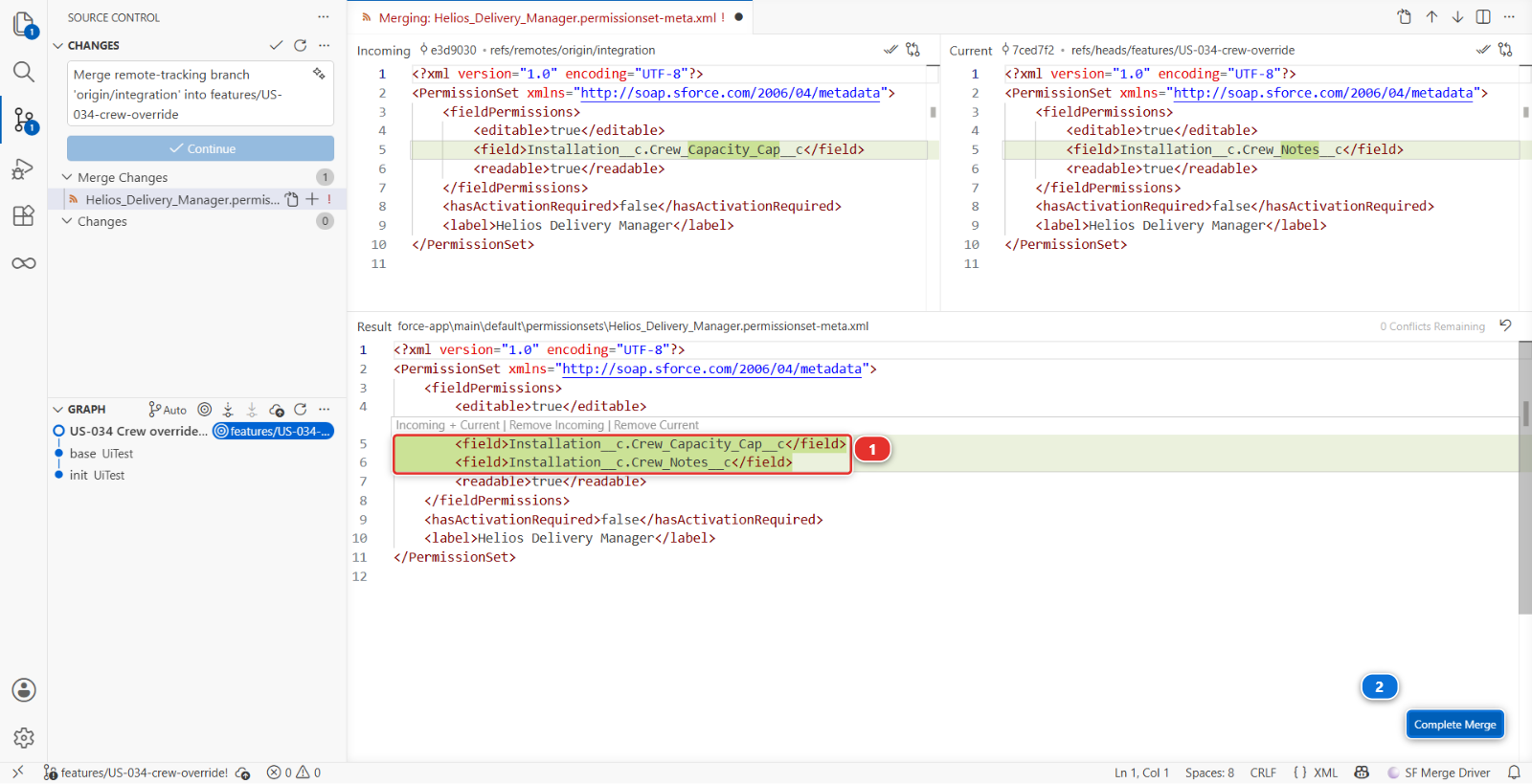
The editor kept both lines, and put them in the same block: one <fieldPermissions> with two
<field> lines, which Salesforce refuses. Git merges lines, not permissions. You want two complete
blocks, one per field, Mariia's Crew_Capacity_Cap__c first and your Crew_Notes__c second. Type
it in the Result pane: after the first <field> line, add the four lines that close the first
block and open the second:
Copy them from here: nobody is asked to write XML from memory. The under the hood section below shows the result you are aiming at. Then click Complete Merge (2).
Take both is the right answer for almost every permission set conflict. Choosing one side is how a teammate's permission quietly disappears, and nobody notices until somebody cannot see a field.
Under the hood: what the conflict actually looked like
Git conflicts on lines, not on XML, so the markers landed inside one block rather than around two:
    <fieldPermissions>
        <editable>true</editable>
<<<<<<< HEAD
        <field>Installation__c.Crew_Notes__c</field>
=======
        <field>Installation__c.Crew_Capacity_Cap__c</field>
>>>>>>> origin/integration
        <readable>true</readable>
    </fieldPermissions>
Once you added the four lines, the result holds two complete blocks, in alphabetical order, which is how Salesforce writes them anyway:
6. Resolve the flow: understand both, then decide
This one you cannot resolve by taking both, because the two changes are in the same decision path.
- Mariia's change caps the crew at what the installation allows: never more than N
- Your change raises the crew to at least 3 on flat roofs: never fewer than 3
Read on their own, both are correct. Together, they can contradict each other on a flat roof whose cap is 2.
This is the moment that matters, and the answer is not technical: go and ask Mariia. On a real project, a conflict in business logic is a conversation, not a merge strategy.
For this lab, the decision has been made for you: the cap wins. A crew larger than the installation allows is a safety problem; a crew of 2 on a flat roof is a slow day. Resolve so that your minimum applies only when it does not exceed Mariia's cap.
Do it in Flow Builder, not in the file. A flow is stored as XML that nobody can read reliably, developers included, and a flow that deploys but behaves wrongly is worse than one that fails.
- Open the flow file under Merge Changes in the merge editor, the same way. Click Accept Incoming above each conflict of the Incoming pane, then Complete Merge: Mariia's whole version wins for now
-
Save / Publish User Story is not what you want yet. First send what the merge brought in to your dev org, so
helios-devhas Mariia's field, her grant and her cap: in the Explorer, right-click theforce-appfolder, then SFDX: Deploy This Source to Org, the same command Lab 2.5 used on one classIt deploys every file of the folder as it is on your machine, and nothing else. The sfdx-hardis Push from local files to Salesforce org command would send your org every change git has seen since the last sync, deletions included, which is more than this step needs
-
Open Flow Builder in the org, on
Installation_Assign_Crew, and add your flat-roof rule again, before her cap: the flow raises a flat roof crew to three first, and her cap, which now runs last, has the final word. Your decision (1) comes first, her Crew Over Cap decision (2) last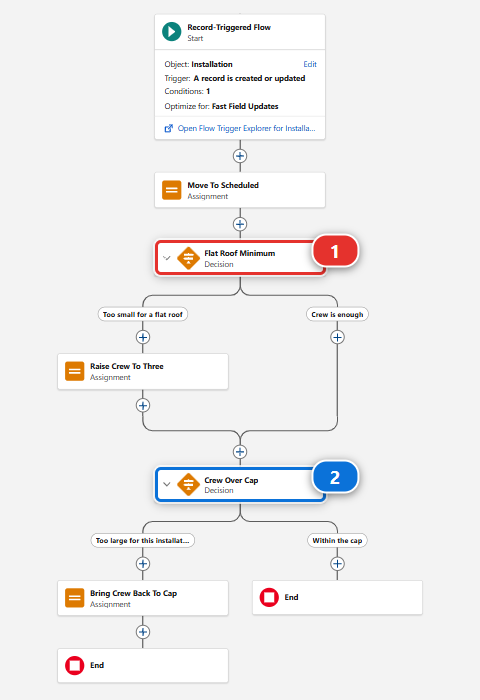
-
Come back to VS Code, retrieve the rebuilt flow with Commit changes, and stage it in Source Control, next to the permission set. Do not commit yet: a merge ends with one commit, and the next step makes it
Slower to describe, much faster to do, and you can see what you are building.
Under the hood: resolving it in the file instead
If you can read flow XML and want to: take Mariia's version of the element and its connectors as the base, re-add your flat-roof decision before her cap, and delete every conflict marker. Then publish, which re-runs the cleaning rules over what you wrote by hand.
The risk is not that it fails. The risk is that it deploys and the decisions run in an order you did not intend, which no check catches and no test in this project covers.
7. Finish the merge and re-validate
Complete Merge moved each file from Merge Changes to Staged Changes. When both are
there, the message box already reads Merge remote-tracking branch 'origin/integration': click
Commit, then Sync Changes to push.
Then re-publish: Save / Publish User Story. This matters. The merge produced XML by hand,
and publishing re-runs the cleaning rules over it and rebuilds manifest/package.xml from what your
branch now changes. Skipping it is how a stray conflict marker reaches a deployment.
Watch the check go green, then merge.
8. Verify both changes survived
In helios-integration:
- The flow caps the crew, Mariia's rule
- The flow raises flat-roof crews, your rule, without breaking the cap
- The permission set grants both fields
If either side is missing, the resolution lost work, and the badge audit will say so.
What you should see
- No conflict markers anywhere: search the repository for
<<<<<<< - Both field permissions in
Helios_Delivery_Manager - Both behaviours in the flow
If it goes wrong
Error parsing file: Element assignments is duplicated at this location in type Flow.
Your resolution left the flow with its elements out of order. A flow file groups every element of
the same kind together: all the assignments, then all the decisions. If your merge dropped a kept
element between two blocks of another kind, move it back up next to its own kind. The order inside
each group does not matter, the grouping does.
Element field is duplicated at this location in type PermissionSetFieldPermissions.
You kept both sides inside a single grant instead of keeping both grants. One <fieldPermissions>
block names one field: the fix is two blocks, not one block with two <field> lines.
The flow will not deploy after the merge: "duplicate element name". You kept both sides of an element that can only exist once. Flow element names are unique. Rename or remove one.
You lost your change entirely. You accepted Mariia's side on the whole file. In the Source Control panel, the ... menu > Branch > Abort Merge, then start step 4 again.
The check fails on a conflict marker.
Search the whole repository for <<<<<<<, ======= and >>>>>>>. A marker in an XML file is
sometimes syntactically tolerated by git and always fatal to Salesforce.
You cannot untangle it at all. Training: Level 2 > Reset this level, then redo from step 1. Losing twenty minutes is better than merging something you do not understand.
Check your work
Welcome page > Training: Level 2 > Check my work, then pick Lab 2.7.
The check asserts outcomes, not procedure: both changes present and correct on integration,
no markers left. However you got there, including resolving in the GitHub web editor or redoing the
work in the Flow Builder, passes.
Go deeper
Next: Lab 2.8 - Recover from committing the wrong metadata